Learn how to use Advanced Chat Privacy and other WhatsApp privacy settings to protect your account from scams, spam, fake calls and suspicious messages in India.
Every single day, all of us use WhatsApp to keep up with our friends and family. Not just that but WhatsApp has also become our a go-to app to send and receive work updates.
As the WhatsApp has become inseperable part our daily lives, cybercriminals have turned it into their favorite hunting ground.
You might have seen them: random WhatsApp video calls from unknown international numbers (+92, +62, or +237), message alerts promising Rs. 3000/day for simply liking YouTube videos, or texts claiming your electricity connection will be cut off tonight unless you pay immediately.
Recent cases show how serious these scams have become. In a recent case, fraudsters posing as National Investigation Agency (NIA) officers allegedly put a Gujarat couple through a fake seven-day “digital arrest” and made them transfer Rs. 30 lakh.
The victim, a retired railway employee from Dwarka, received a call from an unknown number who introduced himself as an NIA officer and claimed that the victim’s bank account had surfaced during an investigation into the the Red Fort blast case.
To keep yourself safe from such frauds, you can make your WhatsApp account harder to misuse and reduce the amount of information strangers can access.
WhatsApp comes built with advanced privacy controls, but most of them are turned off by default. Here is how you can lock down your account and protect yourself step-by-step.
What is Advanced Chat Privacy on WhatsApp?
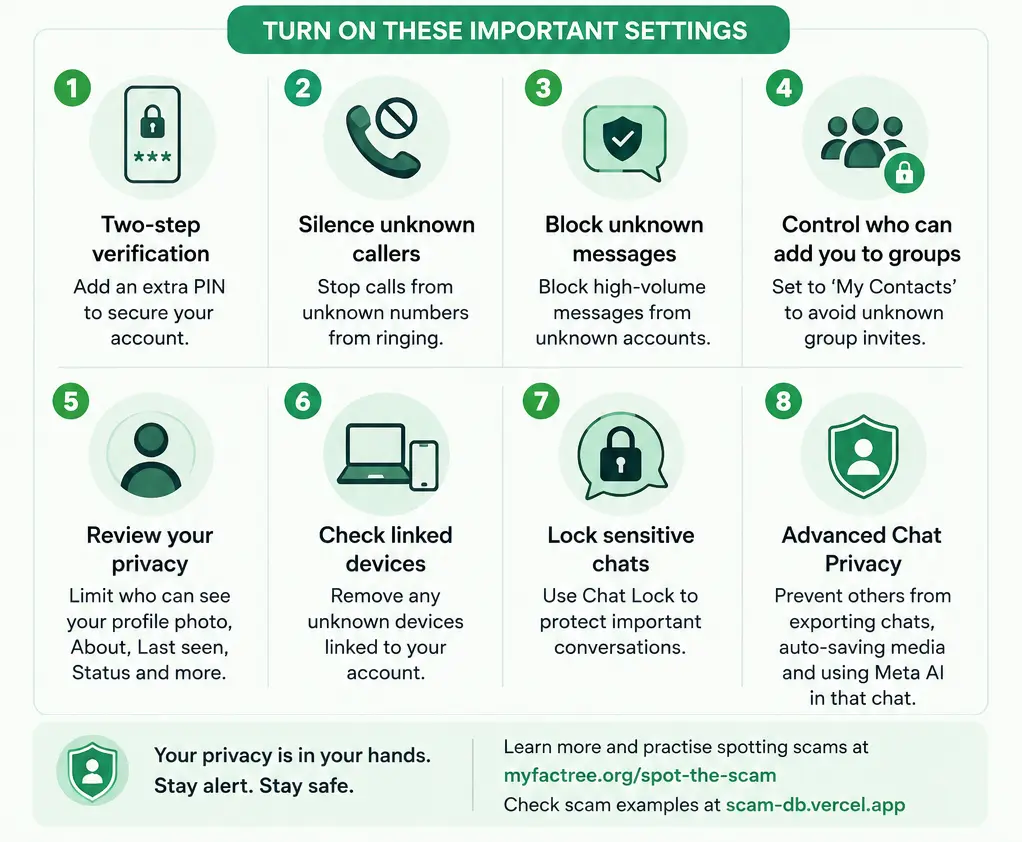
Advanced Chat Privacy gives you more control over what other people in a WhatsApp conversation can do with messages and media outside WhatsApp.
When you turn it on for a chat, participants cannot export the chat, automatically save media from that chat to their phone gallery, or use Meta AI to ask questions about that chat or create images or summaries from it.
Your normal WhatsApp messages are already protected by end-to-end encryption. Advanced Chat Privacy deals with what happens to the conversation after it reaches the people in that chat.
It does not identify scams, stop someone from lying to you or prevent a person from taking a photo of the screen with another phone.
So, treat it as one privacy setting, not a scam detector.
How to turn on Advanced Chat Privacy
You need to enable the setting separately for each conversation.
For an individual chat
- Open the WhatsApp chat.
- Tap the person’s name at the top.
- Tap Advanced Chat Privacy.
- Turn it on.
Either person in an individual chat can change this setting.
For a group
- Open the WhatsApp group.
- Tap the group name.
- Tap Group permissions.
- Make sure Edit group settings is enabled.
- Go back to the Group info page.
- Tap Advanced Chat Privacy.
- Turn it on.
Only group admins can change this setting.
If you are sharing sensitive information in a family, workplace or group, this setting is worth considering.
Advanced Chat Privacy is only one part of WhatsApp security. These settings are more directly useful against unwanted contact and account takeover.
Depending on your specific app version, your profile or Settings option may appear as a dedicated tab (“You”) directly on the bottom right corner of the navigation bar.
If your specific Android version still uses the traditional top-right three-dot menu for settings, you can access it by tapping the three vertical dots in the top-right corner while on the Chats tab.
1. Turn on two-step verification
Your WhatsApp account is linked to your phone number. If a scammer manages to obtain your registration code, they may try to register your number on another device.
Two-step verification adds another layer.
Go to:
Settings > Account > Two-step verificationSet up your PIN and add an email address that you can use for recovery.
Never share your WhatsApp registration code or two-step verification PIN with another person.
2. Silence calls from unknown numbers
You do not have to answer every WhatsApp call.
WhatsApp lets you silence calls from numbers you do not recognise.
Go to:
Settings > Privacy > Calls > Silence unknown callersThe call will still appear in your call list and notifications, but your phone will not ring for it.
This can be useful if you regularly receive calls from unknown numbers pretending to be banks, police officers, delivery companies or customer-care executives.
3. Block high-volume messages from unknown accounts
WhatsApp has an advanced privacy setting that can automatically block messages from unknown accounts when those accounts are sending messages at a high volume.
Go to:
Settings > Privacy > AdvancedLook for Block unknown account messages and turn it on.
This does not mean that every message from an unknown number will disappear. It is designed to reduce high-volume spam.
4. Stop strangers from adding you to groups
Scammers sometimes use WhatsApp groups to approach large numbers of people with fake investment schemes, job offers or loan offers.
WhatsApp’s group privacy settings let you control who can add you to groups.
Go to:
Settings > Privacy > GroupsChoose My Contacts.
If you want more control, use ‘My Contacts Except’ and select all of your contact list. This way, no one would be able to add you in any groups.
5. Review your profile photo and About information
Your profile picture may look harmless, but it can give a stranger information that makes an impersonation attempt more believable.
Go to:
Settings > PrivacyCheck:
- Profile photo
- About
- Last seen and online
- Status
- Groups
For most people, changing these settings from Everyone to My Contacts is a good starting point. WhatsApp also provides My Contacts Except… and Nobody options for several privacy controls.
You can also use Privacy Checkup to review the settings from one place.
6. Check your linked devices
Someone does not necessarily need to take over your entire WhatsApp account to access your conversations. An unfamiliar linked device is a warning sign.
Go to:
Settings > Linked devicesReview the list.
If you see a computer or other device you do not recognise, log it out.
Also be careful with QR codes. If somebody on a phone call tells you to scan a QR code to “verify” your WhatsApp account, stop and check what you are actually linking.
7. Turn on Chat Lock for sensitive conversations
Chat Lock puts selected conversations behind an additional authentication layer and hides them from your normal chat list. Notifications from locked chats also hide the message content and contact information.
You can use it for conversations containing personal documents, financial information or other private material.
To lock a chat, open the chat options and select Lock Chat.
Strict Account Settings
WhatsApp now offers Strict Account Settings, a lockdown-style option intended for people who may be targeted by sophisticated cyber attacks.
When enabled, it turns on several restrictive privacy and security controls. These include two-step verification, blocking high-volume messages from unknown accounts, turning off link previews and restricting some profile information to contacts.
Most WhatsApp users do not need to turn this on. WhatsApp itself says the feature is intended for the small number of people who may be targets of sophisticated attacks.
For the average user, the normal privacy settings are a better place to start.
What you should do when a WhatsApp message looks suspicious
Privacy settings cannot protect you from every scam because many scams depend on social engineering.
- Do not click the link just because the message looks official.
- Do not share an OTP, WhatsApp verification code, UPI PIN or password.
- Do not install an app because someone sent you an APK file on WhatsApp.
And if somebody suddenly asks you to transfer money, call them using a number you already know instead of continuing the WhatsApp conversation.
You can also check suspicious phone numbers, URLs and other identifiers through the National Cyber Crime Reporting Portal’s Report Suspect facility. The facility specifically accepts WhatsApp numbers and Telegram handles, along with phone numbers, email IDs, URLs and social media identifiers.
How to report a WhatsApp scam in India
If you receive a scam message but have not lost money, you can block and report the WhatsApp account.
If you have already lost money, act immediately.
Call 1930, the National Cyber Crime Helpline for financial cyber fraud. The helpline operates 24×7.
You should also file a complaint through the National Cyber Crime Reporting Portal.
Keep the evidence before deleting anything. Save screenshots, phone numbers, WhatsApp messages, UPI IDs, bank transaction details, links and other information that may help investigators.
The faster you report a financial fraud, the better the chance of getting the transaction investigated and potentially stopping or recovering funds.
Where can I learn to identify WhatsApp scams?
Factree’s Spot the Scam lets you practise identifying suspicious elements in scam messages and interfaces. It is useful if you want to test whether you can spot the warning signs before a real scam reaches you.
You can also check suspicious scam patterns and examples through ScamDB.
The best WhatsApp privacy setting is useful only when you use it. Take a few minutes to review your account today, especially two-step verification, unknown callers, group privacy and linked devices. Then make one habit non-negotiable: if a WhatsApp message makes you panic or rush, stop before you act.